
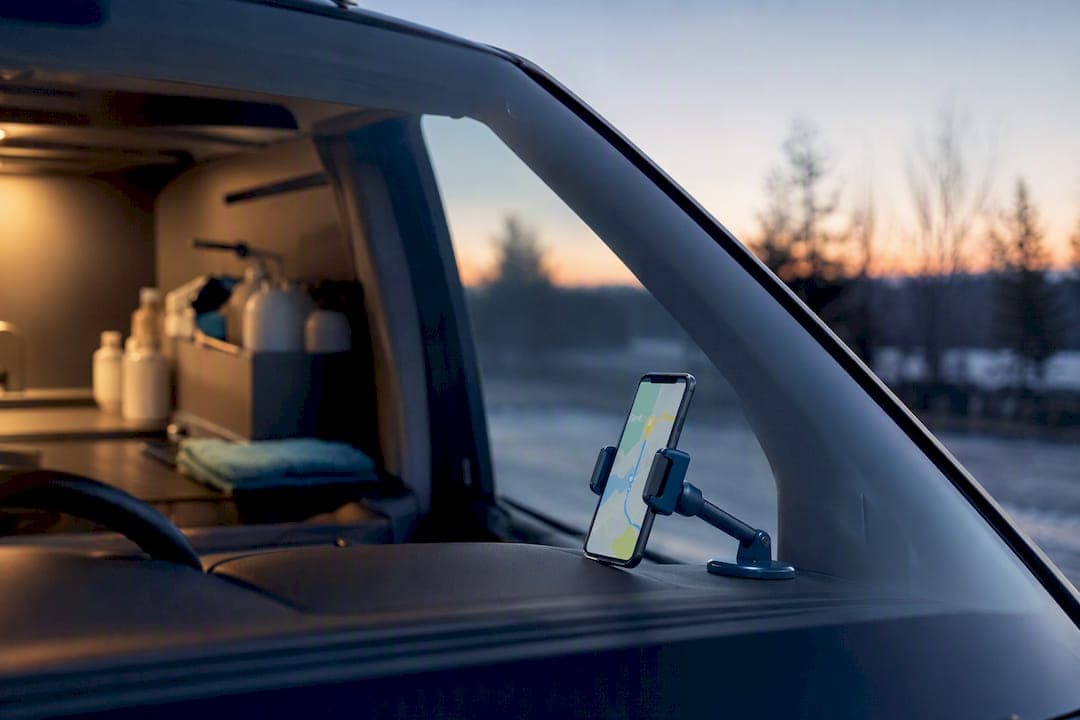
Plan multi-stop routes on your phone with a simple three-step workflow: add stops by typing, speaking, scanning, or importing a CSV; run one-tap optimisation with fastest or shortest modes and locked start and end points; then start turn-by-turn navigation, either in-app or handed off to Apple or Google Maps. Get this right and most mobile teams cut drive time and fit in more stops per day without touching a desktop.
TL;DR:
- Most mobile route planning apps allow adding stops via typing, voice, scanning, or CSV import, with batch importing speeding up the process.
- Locking start and end points during optimization prevents rerouting and ensures schedules stay realistic, especially when factoring in service times and buffers.
- Offline maps and cached routes are essential for rural or patchy signal areas, while adjusting screen brightness and using power banks help preserve battery life during long days.
- Vehicle profiles and service constraints like time windows and equipment stops require manual overrides and careful sequencing beyond pure algorithmic optimization.
- Planning should be done centrally for weekly schedules, with mobile adjustments for same-day changes, and booking data must be clean and standardized to facilitate effective routing.
Table of Contents
- Mobile route planning in three steps: add, optimise, navigate
- Features that matter in a mobile route-planning app
- How appointment-based businesses turn bookings into routes
- Practical tips and quick wins to reduce drive time and increase daily stops
- Booking data is the routing input nobody talks about
- Battery and data usage considerations during mobile route planning
- Customising routes for different vehicle types or delivery constraints
- User interface design best practices for mobile route planning apps
- When to plan on the device and when to plan centrally
- A simpler starting point: fix the booking data first
- Sources
Mobile route planning in three steps: add, optimise, navigate
Every route planner worth using on a phone follows the same basic pattern: add your stops, optimise the sequence, then drive it. Vendor pages and app store listings across the category describe this add, optimise, drive workflow as the core reason people install these apps in the first place. Here's how each step actually plays out on a phone screen.
1. Add your stops. You can type addresses one at a time, use voice input while your hands are busy loading a van, snap a photo of a handwritten job sheet with the scan camera, or pull contacts straight from your phone. For anyone managing more than a handful of stops, batch importing a CSV or spreadsheet is faster than manual entry every time. Keep your file simple: a name column, a full address column, and a duration column (how long you expect to spend at that stop) covers almost every use case and avoids import errors.
2. Run the optimisation. Choose fastest (usually traffic-aware) or shortest (lowest total distance, which isn't always quickest). Lock your starting depot and, if you're finishing somewhere specific, lock the final stop too, so the algorithm doesn't reroute your whole day around convenience. Set realistic service times per stop and add a five to ten minute buffer between jobs. Skip this and you'll watch a tight schedule fall apart by lunchtime.
3. Start navigation. Some apps run turn-by-turn guidance natively; others hand your optimised sequence off to Apple Maps or Google Maps with waypoints preserved. Both patterns are common across mobile-first planners, and neither is objectively better. In-app navigation keeps your stop list and notes on screen; a hand-off usually gives you more familiar voice prompts and better live traffic rerouting.
Features that matter in a mobile route-planning app
Not every app markets itself the same way, but the features that actually change your day boil down to a short list.
- Multi-stop optimisation with a genuine stop ceiling. Some tools cap free routes at a handful of stops and only unlock higher limits, along with offline maps, on paid tiers, so check the fine print before you commit a whole team to one app.
- Batch import and geocoding accuracy. A CSV importer is only as good as its address matching. Test it on a messy real address, a unit number, a rural route, before you trust it with a full day's run.
- Offline maps and cached routes. If you work rural properties or basements with patchy signal, an app that caches the route before you lose reception is not optional.
- Background GPS and voice guidance. Your screen should stay usable for other apps (calendar, payments) while location tracking keeps running underneath.
- Proof of visit. Photo capture, timestamped notes, and signature fields matter if you need evidence a job was completed.
- Exportable route history. Logs you can pull into a spreadsheet or your booking system make weekly reviews possible.
- Location permission scope and data storage. Check whether the app tracks location only while open or continuously in the background, and where that history is stored.
Pro Tip: Before you commit to a paid plan, run one real working day on the free tier first. Stop limits and offline map access are usually the first things that get restricted, so you'll find the ceiling fast.
How appointment-based businesses turn bookings into routes
If you run a mobile grooming van, a pet-sitting round, or any appointment-based service, your route is only as good as the address data feeding it. Loose formatting (a suburb spelled two different ways, a missing unit number) breaks optimisation before it starts.
Export addresses from your booking system in a consistent format. A workable structure includes customer name, full address line, suburb, postcode, expected service duration, and a contact number, which is close to the standard CSV format used for exporting mobile groomer bookings. Once your list is clean, a few habits keep the day realistic:
- Cluster appointments into small geographic zones before you sequence them, rather than optimising one sprawling city-wide list.
- Sequence stops within each zone by expected service duration, so a long treatment doesn't compress the three bookings that follow it.
- Build in buffer time for service variability. An anxious dog or a longer-than-usual trim happens often enough that a zero-buffer schedule guarantees you'll run late.
- Have a fast reoptimisation habit for cancellations. Drop the cancelled stop, hit optimise again from your current location, and confirm the new sequence before you drive.
Clustering by zone and sequencing by duration is standard operational advice among mobile service operators, and it's the single change that stops a good morning from turning into a scrambled afternoon.
Practical tips and quick wins to reduce drive time and increase daily stops
Small routing habits compound faster than most operators expect.
- Run several small-zone optimisations instead of one route across the whole city. A 12-stop cluster optimises faster and more accurately than a 40-stop sprawl.
- Lock your depot as the start point every time, and lock the final stop when you need to finish near home, at a supply pickup, or at a second job.
- Schedule fuel or supply stops as actual waypoints in the route rather than treating them as an afterthought that derails your sequence.
- Pre-download offline maps for any area with patchy coverage, and start the day with a full charge. Continuous GPS and screen-on navigation drain a phone fast.
- Keep a simple driver checklist: charger, offline maps downloaded, route synced, notes updated from last visit.
Most routing apps market fuel and time savings as their headline benefit, and the mechanism behind that claim is straightforward: tighter optimisation reduces backtracking. Track it yourself with three numbers, appointments completed per day, percentage of on-time arrivals, and total route kilometres, and review them weekly. That's enough signal to tell you whether a routing change actually worked or just felt like it did.
Booking data is the routing input nobody talks about
Most articles on mobile routing start and end with the app. The bigger lever is what feeds it. A route planner can only sequence the addresses you give it, and if those addresses come from a scribbled note, a text message, or three different spreadsheets, you're optimising bad data quickly instead of good data slowly.
Clean bookings fix this at the source. When appointment details are captured through a structured booking form rather than a phone call, you get a consistent address field, an accurate service duration, and a contact number attached to every job automatically. Automated reminders sent ahead of each appointment also cut down on no-shows, which matters for routing specifically because a no-show doesn't just cost you the job, it leaves a hole in a sequence you already optimised around drive time. Automated reminders close that gap before it opens.
Three practical next steps worth doing this week:
- Export your upcoming appointments and check every address field for consistency.
- Standardise how you capture unit numbers, suburb names, and contact details at the point of booking.
- Set a fixed daily window, first thing each morning, to re-run optimisation once the day's confirmed list is final.
Pro Tip: Run your optimisation after your last reminder window closes, not before. A route built too early gets stale the moment one client reschedules.
Battery and data usage considerations during mobile route planning
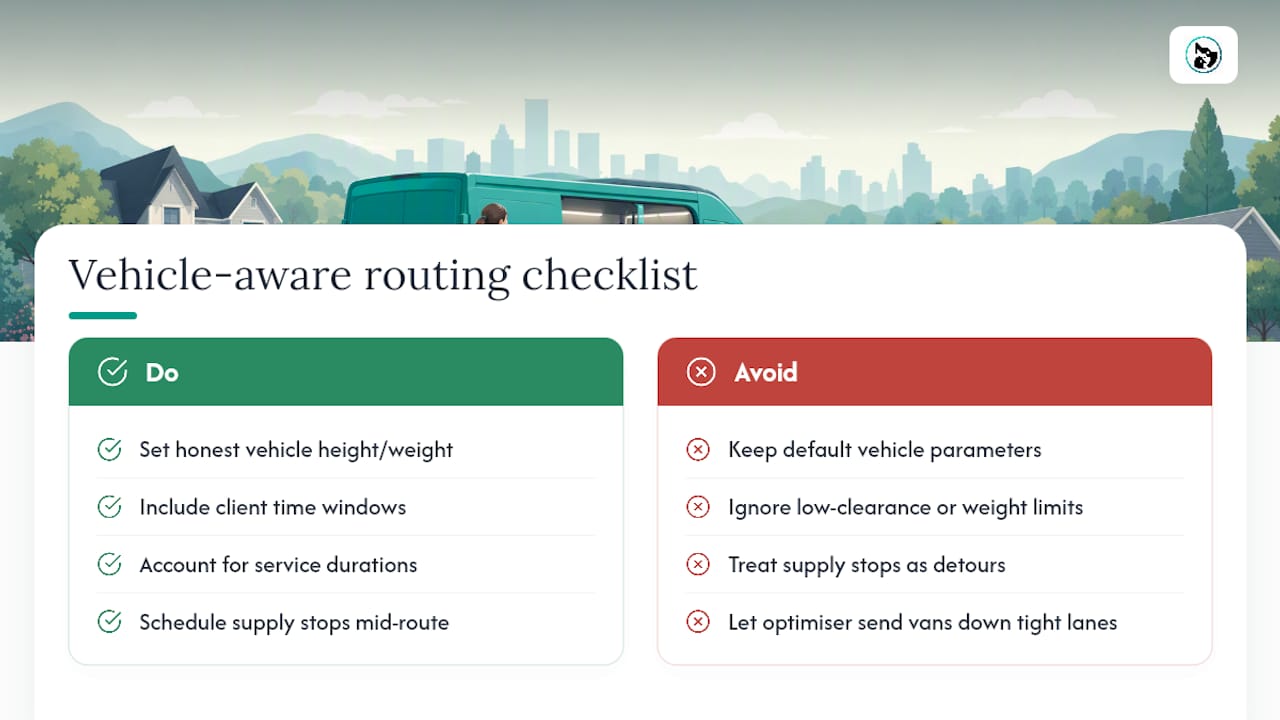
Turn-by-turn navigation with a lit screen and continuous GPS is one of the heaviest workloads a phone runs. Combine that with background data for live traffic updates and a full working day can drain a phone from full charge to critical well before you're done.
A few settings changes make a real difference. Dropping screen brightness and letting the app auto-dim between turns saves meaningful battery without hurting visibility. Downloading maps for offline use before you leave the depot cuts live data usage substantially, since the app isn't constantly re-fetching map tiles over mobile data. If your plan has limited data, offline caching also protects you from bill shock on a long multi-suburb day.
A car charger or a portable power bank is not a luxury for anyone running a full day of navigation, it's baseline kit alongside the phone itself. Some apps also offer a lower-power mode that reduces map redraw frequency and dims rendering detail during navigation, worth testing if you're regularly finishing a shift with a phone in the single digits. Background app refresh for anything unrelated to routing, social apps, email sync, is worth switching off during work hours too. It's a small setting that adds up over an eight-hour shift.
Customising routes for different vehicle types or delivery constraints
A cargo van doing mobile grooming has different constraints to a sedan doing pet sitting drop-ins, and a route planner that treats every vehicle the same will occasionally send you somewhere you can't actually get to.
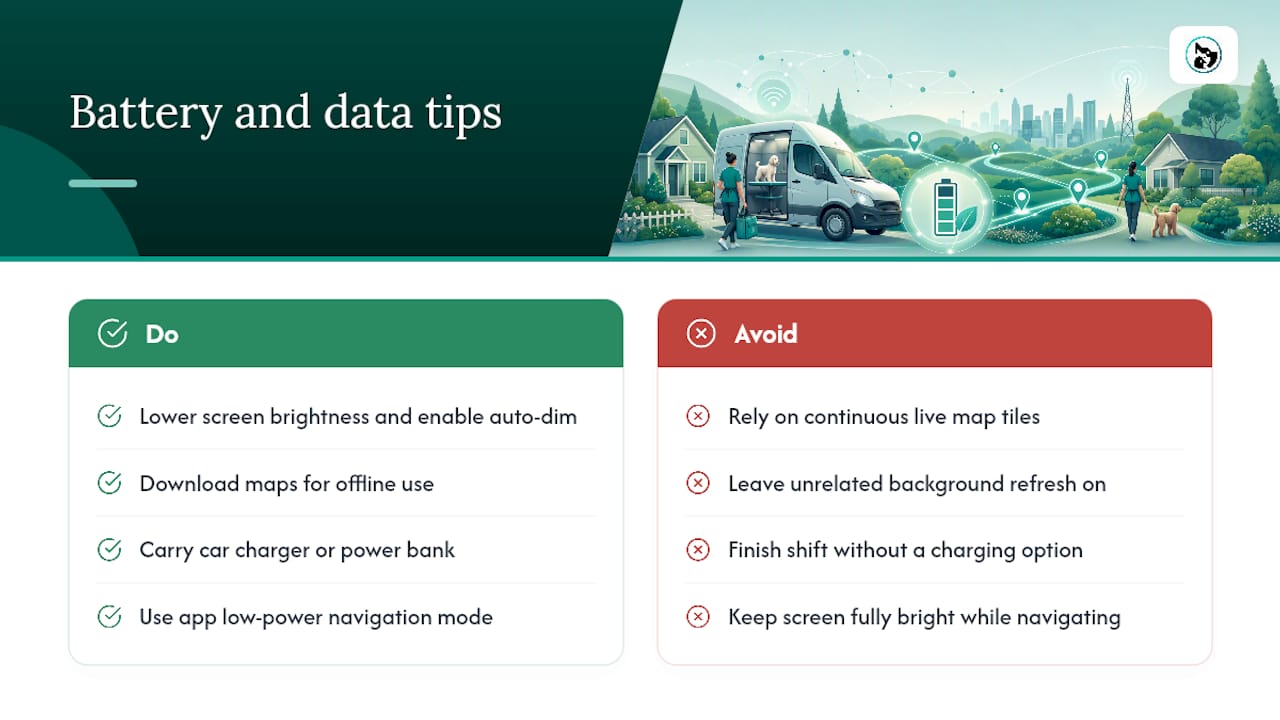
Vehicle-aware routing matters most around low clearances, weight limits on certain bridges or roads, and no-entry restrictions for larger vehicles in some inner-city zones. If your app supports vehicle profiles, set height and weight parameters honestly rather than leaving defaults, because the wrong default can route a van down a laneway built for a hatchback.
Delivery or service constraints add another layer. Time windows matter when a client has specifically booked an early morning or late afternoon slot, and a good optimiser needs to respect that window rather than just minimising total distance. Service duration variance, a full groom versus a quick nail trim, should feed into your sequencing so a long stop doesn't blow out the rest of the afternoon. If you're carrying equipment or stock that needs restocking mid-route, build that supply stop into the sequence rather than treating it as a detour you'll figure out on the day.
The practical rule: the more specialised your vehicle or service, the more manual override you'll need over pure algorithmic optimisation. Trust the optimiser for sequencing, but always sanity-check the actual roads it's sending you down.
User interface design best practices for mobile route planning apps
The best mobile route planners share a few interface habits, and the worst ones share the opposite.
Large tap targets matter more here than in almost any other app category, because you're often using it one-handed, in a moving vehicle, or with gloves on. Buttons for adding a stop, marking a job complete, or triggering reoptimisation need to be reachable without precision taps. A cluttered screen with a dozen small icons competing for space is a genuine safety issue when you're glancing at it at a red light.
Clear visual hierarchy on the route list helps too. The next stop should be obviously distinct from the rest of the sequence, ideally with distance and estimated arrival time visible without a tap. Minimal steps between "job complete" and "next stop navigation" reduce the temptation to fiddle with the phone while driving.
Dark mode isn't just an aesthetic preference for this category. It reduces glare during early morning or evening jobs and helps battery life marginally on OLED screens. Voice feedback for every major action, stop added, route optimised, navigation started, lets you keep your eyes on the road and confirm the app did what you asked without a visual check.
When to plan on the device and when to plan centrally
Mobile planning earns its keep on ad-hoc days, when a client calls in a same-day request or a cancellation opens a gap you want to fill immediately. Central planning, done once from a desktop or dashboard, works better for repeatable weekly schedules and for coordinating multiple staff across overlapping zones.
The rule I'd apply: plan centrally, tweak mobile. Build the week's structure in advance, then let each driver make small on-the-day adjustments from their phone as bookings shift. Coordinate through a shared calendar and a quick morning check-in rather than rebuilding the whole route from scratch every day.
None of this is dramatic on its own. A five-minute buffer here, a locked depot there, a cleaner CSV export. Compounded over a working month, that's the difference between a business that's constantly reactive and one that runs itself.
— AnimalBooking
A simpler starting point: fix the booking data first
Route planners solve sequencing. They don't solve messy addresses, unclear service durations, or clients who forget they booked. If your routing headaches keep coming back, the actual fix usually sits upstream of the map.
Some booking platforms give mobile pet service providers a standardised way to capture every appointment: full address, service duration, contact number, and automated reminders that cut no-shows before they leave a gap in your route.
That means the CSV or export you hand to your route planner each morning is already clean, without a manual scrub first. For mobile groomers specifically, the mobile pet groomers setup handles recurring bookings and deposits, while the smart calendar keeps every staff member's day visible in one place before you export it for routing. If your mornings currently start with cross-checking three different message threads for addresses, start a free setup with online booking and see what a clean export looks like before your next route.
Sources
- The Trusted Route Planner App — Route4Me
- OptiRoute | Smart route planner app
- RouteGO — route planner for iOS