
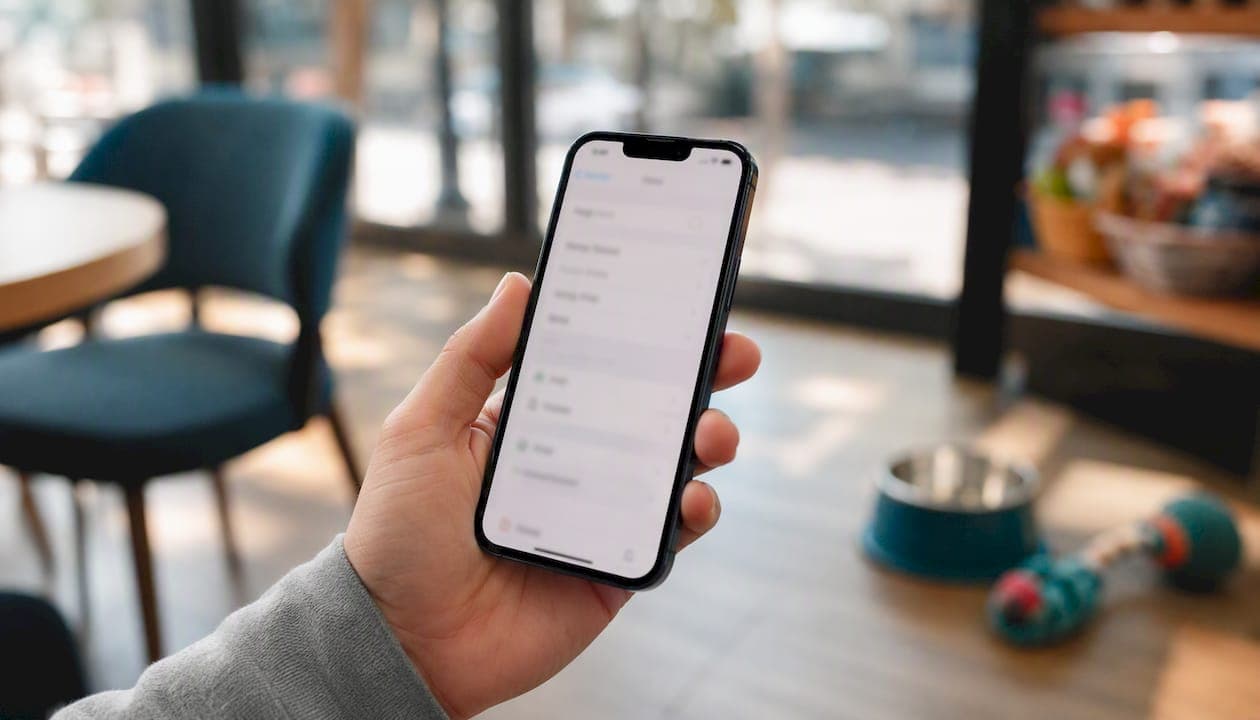
For most people, the fastest fix is free: install the Google Calendar app on Android or add your Google account in iOS Settings to get calendars syncing across every device instantly. When you need live two-way sync between Google, Outlook, and iCloud, that's when a dedicated API connector or a booking platform with built-in calendar blocking earns its place.
Two quick next steps:
- On mobile: Open device Settings, add your Google account, and confirm the Calendar toggle is on. Or download the Google Calendar app directly.
- For cross-service two-way sync: Evaluate an API-driven connector like CalendarBridge, or if you run a pet service business, a booking platform like Animalbooking with Smart Calendar blocking built in.
Key takeaways
Google Calendar sync works best when you match the method to the actual problem: native device sync for personal use, API connectors for cross-platform business workflows, and an integrated booking platform when you need calendar blocking tied to real bookings.
| Point | Details |
|---|---|
| Start with native sync | Add your Google account in device settings — it's free, fast, and covers most personal use cases. |
| One-way for availability only | Use an iCal subscribe feed when you only need to see events, not edit them across platforms. |
| Two-way API for active editing | Use an API-driven connector like CalendarBridge when edits happen on both platforms simultaneously. |
| Always test after setup | Create a simple non-recurring test event and check create, edit, and delete in both directions. |
| Animalbooking for pet service providers | Animalbooking's Smart Calendar blocks Google Calendar availability on booking confirmation, removing the need for a separate sync connector. |
Table of Contents
- How do you set up Google Calendar sync on Android and iPhone?
- How do you view and manage Google Calendar on a computer?
- How do you sync Google Calendar with Outlook and iCloud?
- When does a third-party sync tool actually make sense?
- How do you fix Google Calendar sync problems?
- What privacy and security checks should you do before granting calendar access?
- Native sync, API connector, or booking platform: which should you use?
- Animalbooking keeps your booking calendar and Google Calendar in step
- Sources
How do you set up Google Calendar sync on Android and iPhone?
Android
According to Google's official support documentation, syncing on Android comes down to two things: the app and the account toggle.
- Open the Google Calendar app (pre-installed on most Android devices; download it from the Play Store if missing).
- Sign in with your Google account when prompted.
- Go to Settings → Accounts → Google → your account and confirm Calendar is ticked.
- Pull down the notification shade and check that Auto-sync personal data is enabled under account settings.
- Open Google Calendar, tap the three-line menu, and confirm the calendars you want are ticked (coloured circles on the left).
iPhone and iPad
Google's iOS support guide walks through this path: Settings → Calendar → Accounts → Add Account → Google. Sign in, then switch Calendars on. Your Google events appear in Apple Calendar within a minute or two.
One catch: if you use 2-Step Verification and an older iOS version, Google may ask for an app-specific password instead of your main password. Generate one at myaccount.google.com under Security → App passwords.
Syncing multiple Google accounts
You can add as many Google accounts as you like using the same path. On Android, repeat the account-add steps for each address. On iPhone, go back to Settings → Calendar → Accounts and add each account separately. Once added, each account's calendars appear as separate colour-coded groups in the Calendar app, and you can toggle individual calendars on or off.
Pro Tip: If events from a specific calendar aren't showing up, the most common culprit isn't the sync itself — it's that the calendar is unticked in the app's sidebar. Force a refresh by pulling down on the main calendar view, then check the colour toggles.
How do you view and manage Google Calendar on a computer?
The simplest path needs no software at all. Open a browser, go to Calendar, and sign in. Switch between calendars using the left-hand panel, where each calendar appears as a coloured checkbox. Untick any you want to hide temporarily.
For desktop calendar apps, the options split by use case:
- Outlook desktop (iCal subscribe): In Outlook, go to Add Calendar → Subscribe from web and paste your Google Calendar's iCal link (found in Google Calendar Settings → your calendar → Integrate calendar). This is read-only and updates on a delay, typically every few hours.
- Google Workspace Sync for Microsoft Outlook: Google's dedicated tool for organisations running Google Workspace. It installs as an Outlook add-in and gives tighter, near-real-time sync between your Workspace account and the Outlook desktop client. It's designed for IT-managed environments, not personal Gmail accounts.
- Browser as default: For most individuals, staying in the browser is the most reliable option. No plugins, no sync lag, no compatibility issues.
Google Workspace Sync is worth noting separately: it's intended for organisation-managed accounts where an admin has deployed Google Workspace. If you're on a personal Gmail account and want Outlook integration, the iCal subscribe method or a third-party connector is the practical route.
How do you sync Google Calendar with Outlook and iCloud?
The core decision is one-way versus two-way, and it matters more than most guides admit.
One-way (iCal subscribe) means you subscribe to a read-only feed of another calendar. Your Outlook shows Google events, but changes made in Outlook don't write back to Google. It's simple, free, and carries no risk of accidental edits propagating. The downside: ICS feeds can lag significantly, sometimes by hours, which makes them unsuitable for anything time-sensitive.
Two-way (API connector) copies events in both directions and reflects edits. Changes made in Outlook appear in Google and vice versa. This is what you need for active collaboration or shared resource booking across platforms. The trade-off is complexity: you're granting an app access to both accounts, and a misconfigured rule can duplicate or delete events.
Outlook pairing
For near-real-time sync, use an API-driven connector rather than an iCal feed. Tools like CalendarBridge connect at the account level and push changes as they happen. The iCal route works for availability-checking only.
iCloud pairing
Adding Google Calendar to iCloud requires an app-specific password (generated in your Apple ID settings). One-way sync is often the safer choice for personal iCloud calendars: it keeps your private Apple events out of Google's ecosystem while still showing Google events on your Apple devices.
| Use case | Recommended method |
|---|---|
| Check availability across services | One-way iCal subscribe |
| Active editing on both platforms | Two-way API connector |
| Personal privacy (iCloud stays private) | One-way: Google → iCloud only |
| Business booking with calendar blocking | Booking platform with built-in sync |
Pro Tip: Before enabling two-way sync, create a test calendar in Google and point the connector at that first. Validate that create, edit, and delete all flow correctly before connecting your live calendar.
When does a third-party sync tool actually make sense?
Native sync handles most personal use cases. A paid connector earns its place when:
- You maintain multiple active calendars where edits happen on more than one platform simultaneously.
- Your organisation runs Microsoft 365 with Outlook as the primary calendar and staff also use Google.
- You need shared resource booking (meeting rooms, equipment) visible across Google and Outlook.
- You require low-latency updates — the Google Calendar API supports incremental sync using sync tokens, which is how API-driven tools deliver near-real-time updates without re-downloading entire calendars.
The table below covers the main options, including Animalbooking's booking-centric approach for pet service providers.
| Tool | Best for | Supported services | Direction | Real-time or periodic | Setup complexity | Pricing / free tier | Privacy & security |
|---|---|---|---|---|---|---|---|
| Google Calendar app | Individuals needing device-level sync | Google ↔ Android/iOS/web | Two-way (within Google) | Real-time | Very low | Free | Google account security |
| CalendarBridge | Multi-account, multi-platform two-way sync | Google ↔ Outlook ↔ iCloud | Two-way | Near real-time | Medium | Paid; free trial available | Vendor SOC2 claims; check current docs |
| Microsoft Outlook (integration options) | Organisations using Outlook as primary calendar | Outlook ↔ Google (via iCal or connector) | One-way (iCal) or two-way (connector) | Periodic (iCal) or near real-time (connector) | Medium | Microsoft 365 subscription | Enterprise-grade; Microsoft security |
| Google Workspace Sync for Microsoft Outlook | Google Workspace managed users needing Outlook desktop integration | Google Workspace ↔ Outlook desktop | Two-way | Near real-time | Medium (IT-managed) | Included with Google Workspace | Google Workspace security policies |
| Apple Calendar / iCloud | Apple device users syncing Google events | Google ↔ iCloud/Apple Calendar | One-way or two-way (with app password) | Periodic | Low | Free | Apple privacy policies; app-specific passwords required |
Buying checklist before committing to any paid connector:
- Confirm which OAuth scopes the tool requests (read-only vs. full access).
- Check the vendor's data residency and whether they hold a SOC2 certification.
- Run a test event through the full create-edit-delete cycle before going live.
- Understand the direction rules: does a delete in Google also delete in Outlook?
- Know how to revoke access and roll back if something goes wrong.
Note that booking platforms like WooCommerce Bookings typically apply two-way blocking only to future events and may not recognise externally imported ICS feeds — a limitation worth checking in any booking-specific integration.
How do you fix Google Calendar sync problems?
Work through this in order before assuming the tool is broken.
- Check your internet connection. Obvious, but sync failures are silent on poor connections.
- Confirm the account is signed in. On Android: Settings → Accounts → Google. On iPhone: Settings → Calendar → Accounts.
- Check calendar visibility. Open the Google Calendar app sidebar and confirm the relevant calendar's colour toggle is on.
- Verify the source calendar. Events created in a secondary calendar (e.g. "Work" vs "Personal") only appear if that specific calendar is enabled.
- Toggle Auto-sync. On Android, go to Settings → Accounts → Google → your account and toggle Calendar sync off, then on again.
- Check app permissions. On both Android and iOS, confirm the Calendar app has permission to access your accounts under device Settings → Apps → Permissions.
- Check timezones. Events appearing at the wrong time almost always trace to a timezone mismatch between the device and the Google account settings.
- Force a manual refresh. In the Google Calendar app, pull down on the main view to trigger a refresh.
- Remove and re-add the account. If events are still missing, remove the Google account from device settings and add it again. This triggers a fresh full sync.
- Clear app cache (Android only). Settings → Apps → Google Calendar → Storage → Clear Cache.
- Re-authorise third-party access. For connector tools, go to myaccount.google.com → Security → Third-party apps with account access, revoke the connector, and reconnect it.
Recurring events and cross-service sync
Series exceptions (a single changed occurrence within a recurring event) are the most common failure point when syncing between Google and Outlook or iCloud. If a recurring event looks correct but one instance is wrong or missing, create a simple non-recurring test event first to confirm the base sync is working, then investigate the series separately.
Pro Tip: Keep one dedicated test event in every sync pair you maintain. After any account change or app update, check that event's create, edit, and delete flows still work in both directions. It takes two minutes and saves hours of debugging later.
What privacy and security checks should you do before granting calendar access?
Granting a third-party app access to your calendar is granting access to your schedule, your contacts' names, and often your location data. Do this before you authorise anything:
- Review OAuth scopes. When an app requests access, it lists the scopes it needs. "Read-only" is safer than "full access." If a sync tool asks for full Google account access when it only needs calendar read, that's a red flag.
- Verify vendor security claims. Look for SOC2 Type II certification and confirm whether the vendor complies with Australian Privacy Act obligations. Check the vendor's privacy policy for where data is stored (Australian or overseas servers).
- Use minimum permissions. For customer-facing calendars, a "busy/available only" one-way feed exposes nothing about the event details. Reserve full two-way access for internal team calendars.
- Audit existing access. Go to myaccount.google.com → Security → Third-party apps with account access. Revoke anything you no longer use or don't recognise.
- Reauthorise with minimum scopes. When reconnecting a tool, check whether it offers a "read-only" or "availability only" option before accepting full access.
Pro Tip: For booking platforms specifically, confirm the tool stores only the event metadata needed to block availability. Customer names, contact details, and payment information should sit in the booking platform's own secure CRM, not in the calendar event itself.
Native sync, API connector, or booking platform: which should you use?
The honest answer is that most people reach for a paid connector before they need one.
Native device sync — adding your Google account to iOS or Android settings — covers the vast majority of personal and small-business use cases. It's free, takes under two minutes, and carries no third-party data risk. If your only goal is seeing the same events on your phone, tablet, and laptop, stop there.
API-driven two-way connectors make sense when you genuinely have two authoritative calendars that both receive edits. A consultant who books client meetings in Outlook but manages personal appointments in Google Calendar is a real candidate. Someone who just wants to "see" their Google events in Outlook is not — a read-only iCal subscribe handles that without the complexity or cost.
For pet service businesses — groomers, boarders, vets, equine professionals — the calculus shifts. The problem isn't just syncing calendars. It's preventing double bookings when a client books online at the same time a staff member adds a walk-in. That requires calendar blocking tied directly to the booking system, not a general-purpose sync connector. An integrated platform like Animalbooking, with its Smart Calendar and automated reminders, handles that as a single workflow rather than a stitched-together combination of a booking tool, a sync connector, and a separate CRM.
Animalbooking keeps your booking calendar and Google Calendar in step
Pet service providers running on texts and spreadsheets lose bookings to double-booking errors that a proper calendar integration would have caught in seconds. Animalbooking's Smart Calendar syncs directly with Google Calendar and blocks availability the moment a booking is confirmed, so a new online booking can never land on top of an existing appointment.
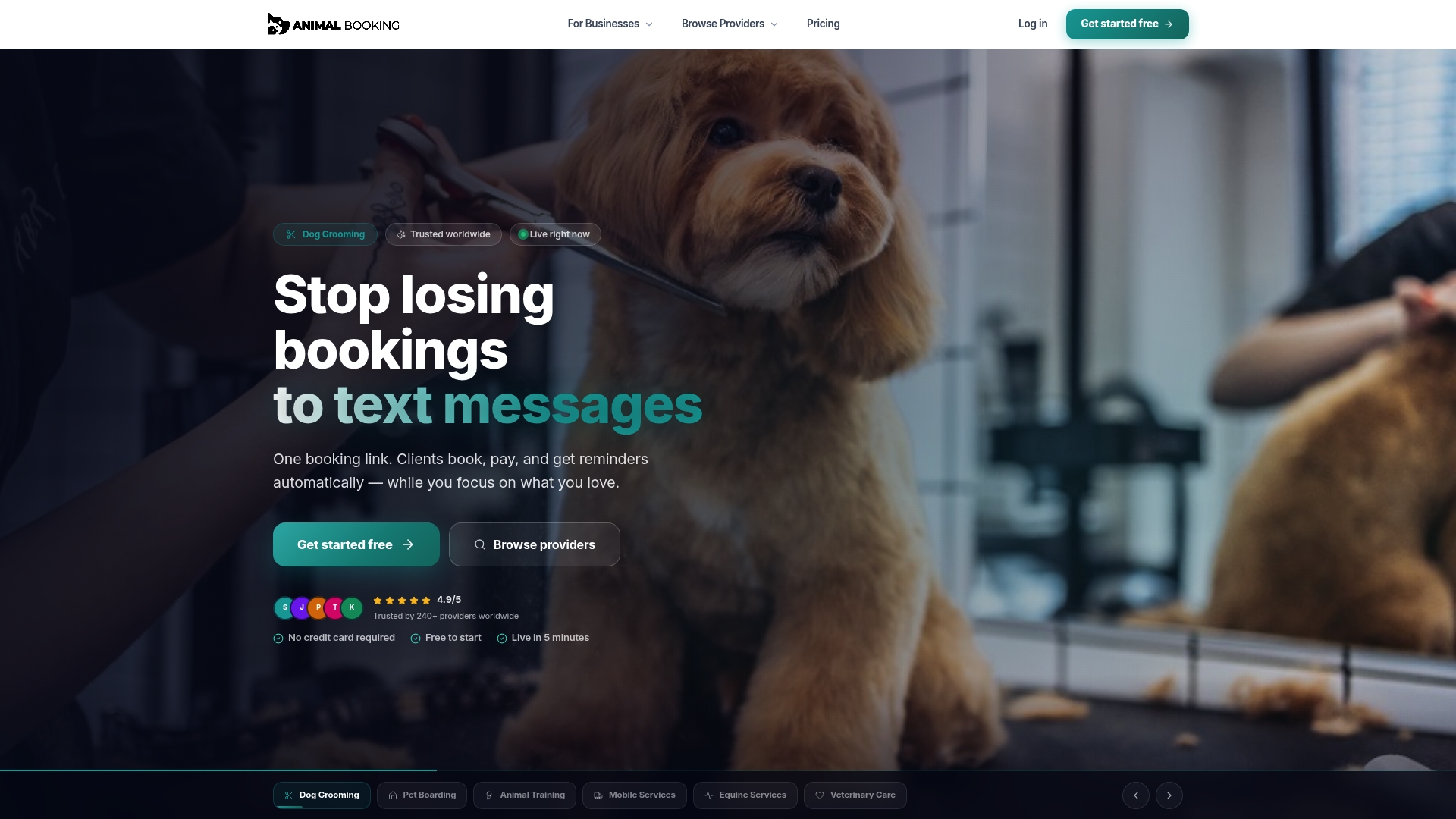
Pair that with Auto Reminders, which fire automatically based on the synced calendar event, and no-shows drop without any manual follow-up. The whole setup takes minutes, includes a free tier, and replaces the need for a separate sync connector, a separate CRM, and a separate payments tool. It's one platform built specifically for pet service businesses, not a general-purpose sync tool adapted to fit.
Get started with Animalbooking and connect your Google Calendar as part of the onboarding flow.
Sources
Official end-user setup documentation:
- Sync Calendar with a phone or tablet - Android
- Synchronize resources efficiently | Google Calendar | Google for Developers
- Marketplace
- WooCommerce Bookings: Google Calendar Integration Documentation - WooCommerce
Developer and API documentation:
Vendor and integration pages: