

Yes, you can add a booking form to Wix quickly by installing Wix Bookings from the App Market and building either a default form or a service-specific one through Booking Settings. If you only need a standalone fillable form with no calendar attached, Wix Forms handles that instead. The fastest path: add the app, open Booking Settings → Booking form, click + Create New Form, then save.
TL;DR:
- Wix Bookings allows quick setup of default or service-specific booking forms, with customization options for fields, labels, and required status.
- Custom forms per service enable adding specific intake fields such as pet's name or vaccination details, improving data collection accuracy.
- Styling the form to match your site’s branding and optimizing labels for clarity can boost conversions and reduce abandoned bookings.
- Online payment setup with deposits or full payments directly confirms bookings, while offline payments require manual confirmation in the dashboard.
- Mobile form optimization involves shortening fields, testing on actual devices, and simplifying options to prevent user drop-off during booking.
Table of Contents
- How do I add a booking form on Wix?
- Creating a custom booking form for a specific service
- Making the booking form look like it belongs on your site
- Setting up payments, deposits and booking policies
- Desktop vs the Wix Owner app: what you can actually do on mobile
- Quick fixes when your booking form doesn't show or bookings fail
- Managing bookings once customers start submitting them
- Setting up confirmation and reminder emails
- Handling cancellations and rescheduling
- Making the booking form work for mobile customers
- Assigning staff and team members to bookings
- When to stick with Wix Bookings and when to consider a specialist platform
- Consider Animal Booking if you run a pet-service business
- Sources
- FAQ
How do I add a booking form on Wix?
Start in the Wix App Market, which is where every Wix booking system integration begins. Search "Wix Bookings" and click Add to Site. Once installed, the app creates a Bookings tab in your dashboard and a default set of pages on your site, including a services list and a booking calendar.
Here's the setup sequence for your first default form:
- Open your Dashboard and click Bookings, then Settings.
- Select Booking Form from the settings menu.
- Edit the form title and subtitle so they match your brand voice, not the generic Wix placeholder text.
- Decide whether you want one combined "Full Name" field or separate first and last name fields.
- Toggle which fields are required (phone number and email are sensible defaults for most pet-service bookings).
- Click Save.
This default form applies to every service on your site unless you override it for a specific one, which is where custom forms come in later. The setup mirrors what Wix's own help documentation on creating and setting up booking forms walks through in more granular detail if you want screen-by-screen confirmation.
Test it before you consider the job done. Go to your live site, click through to a service, and submit a dummy booking with a free service or a $0 test slot. Check that it lands in your dashboard under Bookings with the fields you expect. If nothing shows up, the form probably isn't published yet, which is the single most common setup mistake among first-time Wix Bookings users.
Creating a custom booking form for a specific service
The default form works fine when every service needs identical information. It falls apart the moment a dog groomer needs vaccination details for one service and a basic phone number for another.
Wix lets you override the default per service. Open Bookings → Services, click on the service you want to customise, and expand Additional Settings. Inside, you'll find Custom Booking Form — turn this on and you get a form editor scoped to that one service alone.
From there, you can:
- Add fields specific to that service (a text field for "Dog's name," a dropdown for "Vaccination status," a checkbox for "First-time client")
- Remove fields that don't apply (a consultation booking rarely needs a pet breed field)
- Toggle any field between required and optional
- Split a combined name field into first and last name, or merge them back
- Reorder fields so the most important information appears first
A grooming appointment might ask for pet name, breed, and known allergies. A training class might instead ask for the dog's age and any behavioural notes. A vet consultation might need a reason for visit and whether it's a follow-up. Each service gets its own logic, which is the real value of building a custom booking form for Wix rather than relying on one generic template.
Save your changes, then preview that specific service page in a new browser tab and submit a test booking to confirm the right fields appear.
Making the booking form look like it belongs on your site
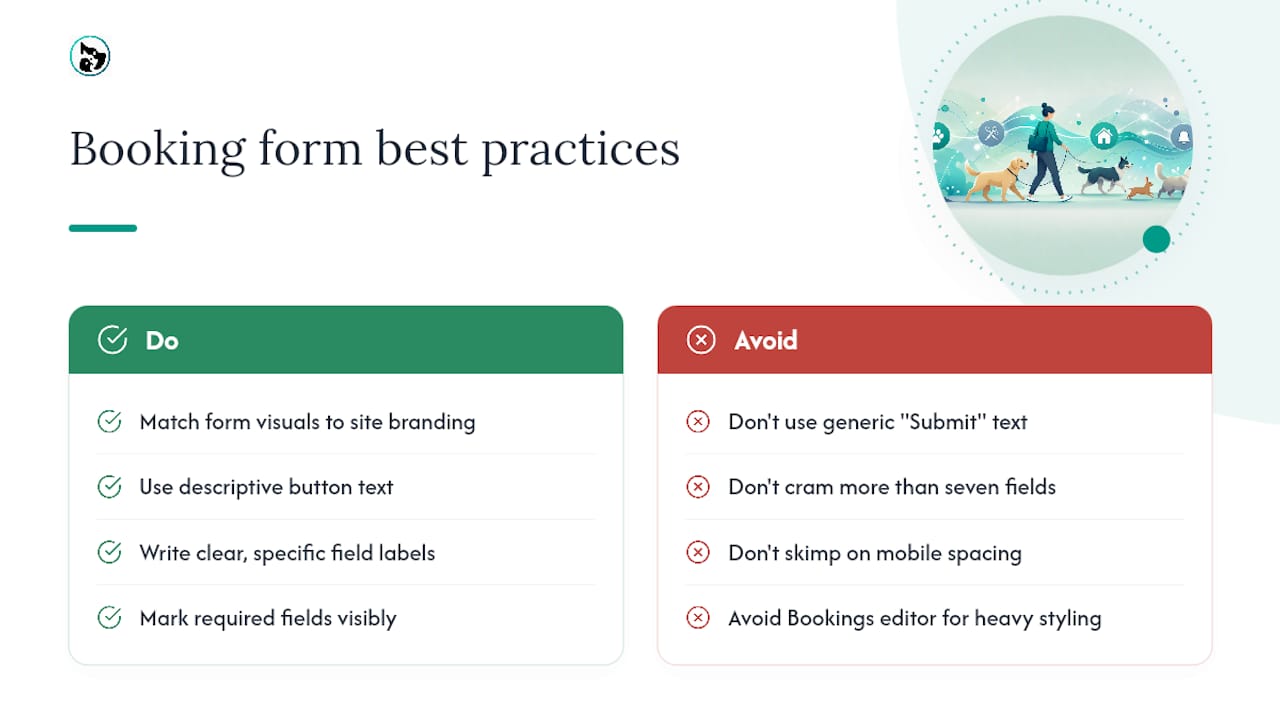
A booking form that looks bolted on is worse for conversions than a clunky one that matches your branding. Wix ties the form's visual settings to your Booking Form design panel, where you control colours, borders, corner radius, and font choices for labels and buttons.
Button text matters more than most business owners assume. "Submit" converts worse than "Confirm My Appointment" or "Book This Groom." Edit it inside the same Booking Form settings panel, under the button customisation options, and match the wording to how your customers actually talk.
Field labels deserve the same attention. "Additional notes" tells a customer less than "Anything we should know about your pet?" Clear, specific labels reduce abandoned forms, particularly on mobile, where a vague label forces a customer to tap in and guess what you're asking.
For accessibility, keep required fields marked with a visible asterisk or "(required)" tag, keep spacing generous enough that thumbs don't misfire on adjacent fields, and avoid cramming more than six or seven fields onto one screen.
Pro Tip: If you need heavier styling control (custom fonts mid form, conditional field logic, multi-step layouts) skip the Bookings form editor and build a Wix Forms version instead, then link it into your booking confirmation flow. Wix Forms gives you a proper drag-and-drop builder that Bookings' native form editor doesn't offer.
Setting up payments, deposits and booking policies
Online payments change how a booking gets confirmed, so this step matters more than it looks. Connect a payment provider such as Wix Payments or Stripe under Bookings → Settings → Payments, then decide your policy:
- Full payment upfront, which auto-confirms the booking the moment payment clears
- A deposit only, with the balance due at the appointment
- Offline payment, where you manually confirm the booking after the customer pays in person
That confirmation detail is worth understanding properly. On the back end, a booking is created with a "pending" status and only shifts to confirmed once the payment or checkout step completes, according to Wix's own developer reference for the booking flow. For free services or offline payments, you confirm manually from the dashboard instead. Set your cancellation window and any reminder text in the same policy screen so customers see it before they book.
Desktop vs the Wix Owner app: what you can actually do on mobile
Custom form creation and detailed design work belong on desktop. The Wix Owner app is genuinely useful, but it's built for managing bookings on the go, not building them.
- Build or edit a custom booking form: desktop only
- View upcoming bookings, confirm or decline requests, message clients: Owner app works fine
- Check a client's booking history before a repeat appointment: Owner app works fine
- Calendar sync with Google Calendar and push notifications for new bookings: works on both, once set up
This desktop limitation catches people off guard, and it's confirmed directly in Wix's own guidance on creating booking forms via the Owner app. If you're planning your whole setup from a phone, budget one session at a laptop for the form build itself.
Quick fixes when your booking form doesn't show or bookings fail
- Confirm the Bookings app is actually added to the page you're viewing, not just installed to the site. It's easy to install the app but forget to drag its widget onto a live page in the Editor.
- Publish the page again. Unpublished changes are the single most common reason a form "disappears."
- Run a test booking using a free service or a small test payment, then check it lands in your dashboard, exactly as independent reviews of Wix Bookings recommend as standard practice before going live.
- If two bookings land on the same slot, check your service's availability rules for overlapping staff schedules.
- Clear your browser cache or open an incognito window before assuming something is actually broken.
Managing bookings once customers start submitting them
Every submitted booking lands in Dashboard → Bookings, sorted by upcoming date by default. Each entry shows the customer's name, contact details, service booked, payment status, and any custom fields you set up for that service.
Click into an individual booking to see the full form submission, confirm or decline a pending request, or add internal notes visible only to you and your staff. This is also where you'll spot no-shows and repeat customers, since Wix keeps a running history per client email address.
Filter by service, staff member, or date range when your calendar gets busy. A dog groomer running six services across three staff members will want the staff filter far more than the date filter, since most no-show and rescheduling problems cluster around specific team members rather than specific days.
Export options exist for basic reporting, though Wix's built-in analytics stay fairly high level. If you're tracking revenue per service type or no-show rates by staff member, you'll likely end up doing that math manually in a spreadsheet, since Wix Bookings wasn't built as a dedicated reporting tool.
Bookings made without full payment show a distinct status flag, letting you separate confirmed, paid appointments from pending ones still awaiting a deposit or manual confirmation.
Setting up confirmation and reminder emails
Automated emails are switched on by default the moment you install Wix Bookings, but the wording is generic until you edit it. Go to Bookings → Settings → Notifications to find the full set: booking confirmation, reminder, cancellation, and rescheduling templates.
Edit each template to sound like your business rather than a Wix placeholder. Swap "Your booking is confirmed" for something with your business name and a personal line, since that first line is what shows in a customer's inbox preview.
Reminder timing is configurable, usually set anywhere from one hour to 48 hours before the appointment. For pet groomers and boarders, a reminder sent the evening before tends to catch people before they've made other plans, which matters given how much a missed appointment costs a service business running on a tight daily schedule.
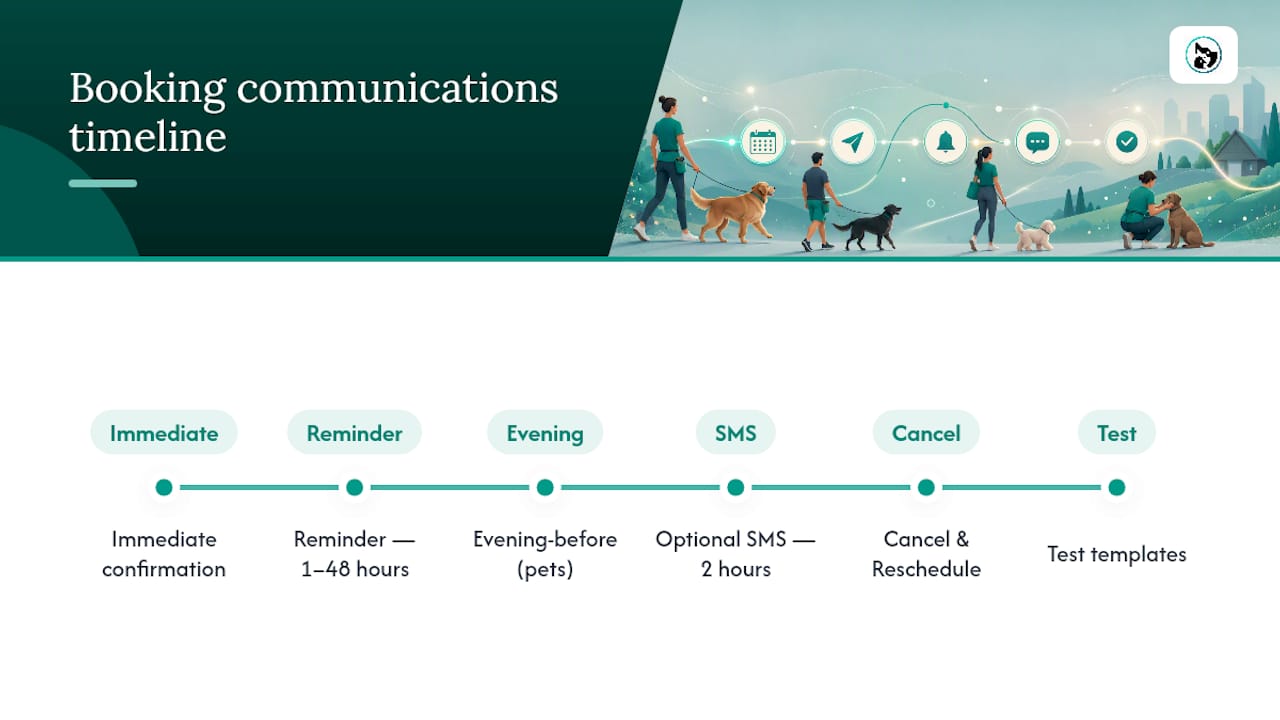
You can also add SMS reminders on paid Wix plans, which generally get read faster than email. If no-shows are a persistent problem, stacking an email reminder two days out with an SMS reminder two hours out covers both slow-to-check-email customers and last-minute forgetfulness.
Test every template by booking a dummy appointment yourself and checking what actually lands in your inbox, not just what the settings preview shows.
Handling cancellations and rescheduling
Set your cancellation policy under Bookings → Settings → Booking Policy before you need it, not after your first difficult customer. You can require a minimum notice period, charge a cancellation fee through your connected payment provider, or block same-day cancellations entirely.
Customers cancel or reschedule either through a link in their confirmation email or, if you enable it, through a self-service portal on your site. Both actions update your calendar automatically and trigger a fresh notification email to you.
For rescheduling specifically, Wix keeps the original custom form data attached to the new time slot, so you don't lose the service-specific details a customer already submitted. That's a genuinely useful default: a groomer doesn't need a dog owner to retype vaccination details just because the appointment moved from Tuesday to Thursday.
If you need to cancel or move an appointment from your end (staff illness, weather, equipment failure), do it directly from the dashboard rather than asking the customer to rebook manually. Wix sends the update notification automatically, which saves you a phone call and reduces the chance of a genuine double-booking mix-up down the line.
Making the booking form work for mobile customers
Most bookings now happen on a phone, so a form that only feels natural on desktop is quietly losing you customers. Keep individual fields short and avoid horizontal scrolling. Wix's mobile editor lets you adjust spacing and font size independently from desktop, and it's worth doing that pass separately rather than assuming desktop settings translate cleanly.
Cut optional fields ruthlessly on mobile. Every extra field is a chance for someone to abandon the form mid-scroll, particularly if they're booking while standing in a pet shop queue rather than sitting at a laptop. Ask for what you genuinely need to deliver the service and nothing more.
Test the button text and field labels on an actual phone screen, not just the desktop preview. A label that wraps awkwardly across two lines on a five-inch screen looks unprofessional and can obscure whether a field is required.
Autofill support matters too. Standard field names for email, phone, and name trigger a phone's autofill suggestions, cutting typing time substantially. Custom fields with unusual formatting (a dropdown menu built as free text, for example) don't get this benefit, so stick to standard field types wherever the service allows it.
Assigning staff and team members to bookings
If you run a multi-person operation, staff setup happens under Bookings → Staff. Add each team member, assign the services they perform, and set individual working hours that differ from the business's general hours.
Customers then see a staff selector when booking a service, either choosing a specific groomer or trainer by name or accepting whoever's available first. This matters more in pet services than most industries: a customer who's built trust with one particular groomer over eighteen months doesn't want to gamble on a random assignment.
Each staff member's calendar syncs independently, so double-bookings across different team members become far less likely once this is set up correctly. You can also restrict which staff member's bookings a given employee can view and manage from their own login, which helps with privacy in larger teams.
When to stick with Wix Bookings and when to consider a specialist platform
Wix Bookings genuinely suits a solo groomer or single-location trainer who wants appointments handled inside the same site as everything else. Where it starts to strain is volume and specificity: complex intake forms, a multi-staff rota with resource conflicts, or reminder automation stronger than what Wix ships natively. Ask yourself three things before switching: how many bookings a week, how much service-specific detail you actually need per booking, and whether missed reminders are costing you real revenue.
— AnimalBooking
Consider Animal Booking if you run a pet-service business
If you found yourself wishing the custom form fields went further, that's usually the signal a general-purpose booking tool has hit its ceiling for a pet-specific operation. Animal Booking is built for that exact gap: dog groomers, boarders, vets, and mobile pet services get intake fields, deposit rules, and reminder timing designed around animals rather than retrofitted for them.
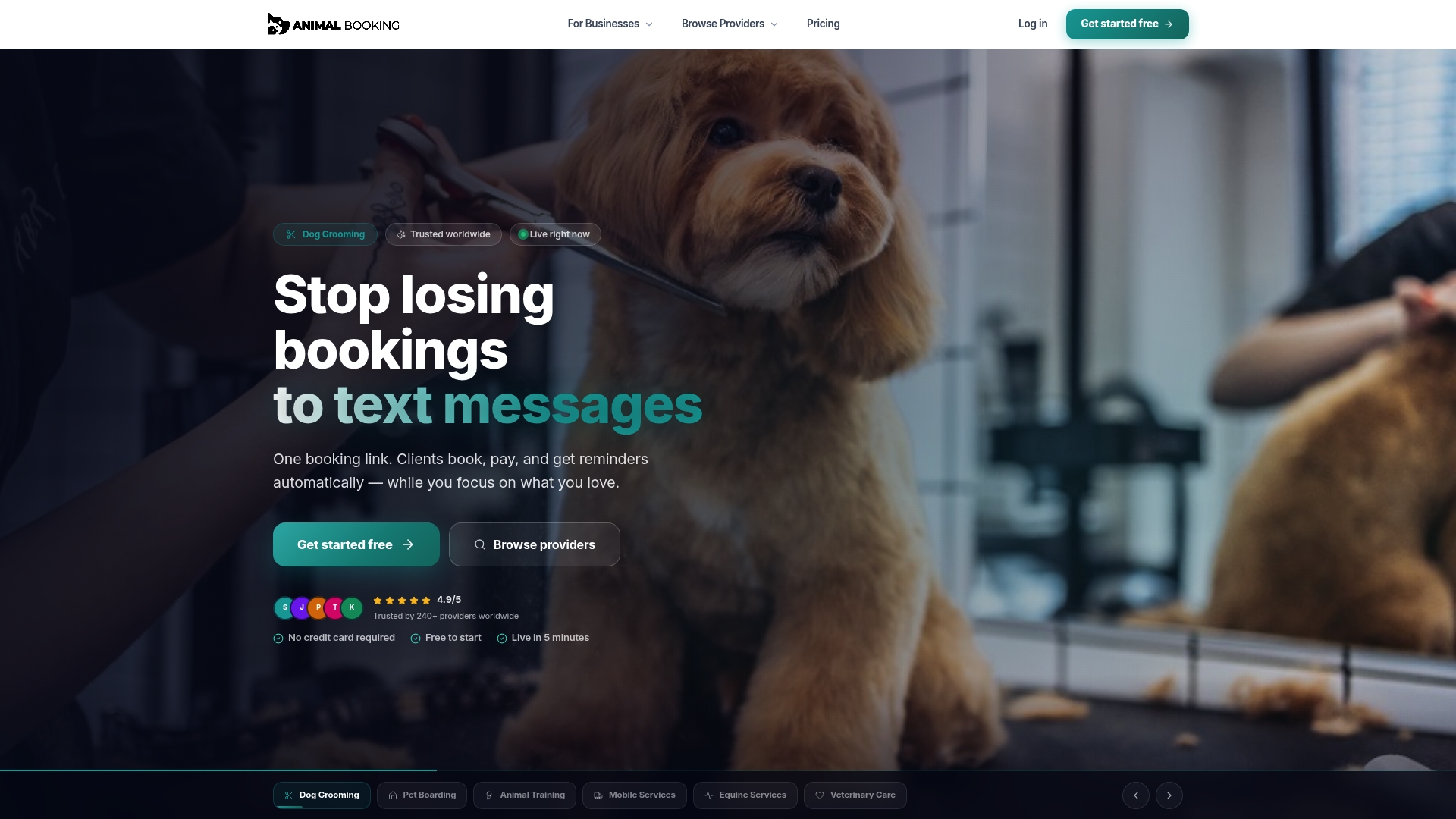
Animal Booking's own feature pages show embeddable booking forms and a branded booking website option if you'd rather run bookings from a dedicated page instead of squeezing them into a general site. Some platforms state setup takes 10 to 15 minutes to go live and offer automated reminders to help reduce no-shows. Plans run from Starter through Independent, Teams, and Pro, with platform fees scaling down as your plan tier goes up. If pet-specific fields, faster setup, and stronger reminder automation sound like what your booking form is missing, check the pricing page and see which tier fits your booking volume.
Sources
For readers who want to verify menu paths themselves, Wix's own documentation on creating and setting up booking forms covers the exact settings referenced throughout this guide. Developers building custom integrations should check the Wix Bookings end-to-end booking flow reference for how bookings move from created to confirmed status. If you're also focused on getting your booking page found in search, guidance on optimising Wix pages for SEO is worth a read once your form is live.
FAQ
Does Wix Have a Booking Feature?
Yes. Wix Bookings is a free-to-install app from the Wix App Market that adds a calendar, service pages, and a booking form to any Wix site.
How Do I Add a Fillable Form to My Wix Website?
For a booking-specific form, install Wix Bookings and build it through Booking Settings. For a standalone fillable form with no calendar attached (a general inquiry or intake form), use Wix Forms from the same App Market instead.
How Do I Add Booking Services to My Wix Website?
Go to Dashboard → Bookings → Services, click Add Service, and fill in the name, duration, price, and staff assignment. Each service can carry its own custom booking form if it needs different information from your default.
How Do I Create an Online Booking Form?
Install Wix Bookings, open Booking Settings → Booking Form, and click + Create New Form to build one from scratch, or edit the default form that installs automatically. Pet-service businesses wanting deeper intake fields and stronger automated reminders can also compare a specialist option like Animal Booking once the basic Wix setup is running.
What Happens if a Customer Doesn't Pay a Deposit?
The booking sits in a pending status rather than confirming automatically, since Wix's booking flow only shifts a booking to confirmed once payment or checkout completes. You'll need to confirm it manually from the dashboard if you're accepting the booking without full payment upfront.